Linux 安装
源码编译安装Redis
本教程使用稳定版本,下载并安装Redis:
wget http://download.redis.io/redis-stable.tar.gz |
执行完 make 命令后,src 目录下会出现编译后的 redis 服务程序 redis-server,还有用于测试的客户端程序 redis-cli,两个程序位于安装目录 src 目录下:
- redis-server Redis 服务器程序
- redis-cli 与Redis交互的命令行界面程序
安装可执行程序到/usr/local/bin,执行:
make install
在前台启动和停止 Redis
安装后,您可以通过运行来启动 Redis
redis-server |
如果成功,您将看到 Redis 的启动日志,Redis 将在前台运行。
30858:C 11 May 2023 20:26:52.870 # oO0OoO0OoO0Oo Redis is starting oO0OoO0OoO0Oo |
要停止 Redis,请输入Ctrl-C。
注意这种方式启动 redis 使用的是默认配置。也可以通过启动参数告诉 redis 使用指定配置文件使用下面命令启动。
cp redis.conf /etc/redis.conf |
redis.conf 是一个默认的配置文件。我们可以根据需要使用自己的配置文件。
启动 redis 服务进程后,就可以使用测试客户端程序 redis-cli 和 redis 服务交互了。 比如:
redis-cli |
关闭停止redis服务
redis-cli shutdown |
配置 Redis 为后台服务
将配置文件中的 daemonize no 改成 daemonize yes,配置 redis 为后台启动。
Redis 设置访问密码
在配置文件中找到 requirepass,去掉前面的注释,并修改后面的密码。
常用配置文件例子 redis.conf
#默认端口6379 |
在 ubuntu 上安装 Redis
按照下面给出的步骤在 Ubuntu 上安装 Redis:
首先使用 sudo 设置非 root 用户,然后安装构建和测试依赖项:
sudo apt update |
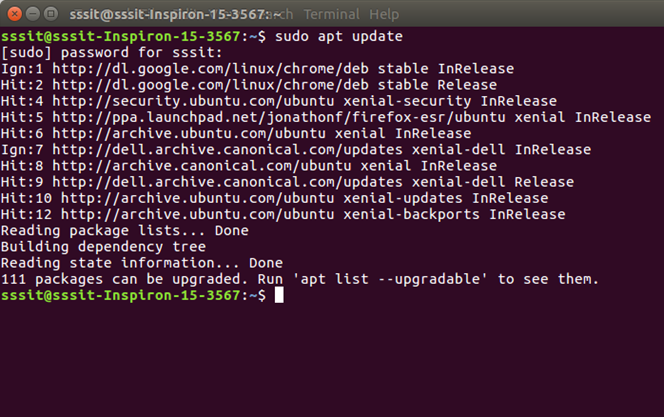
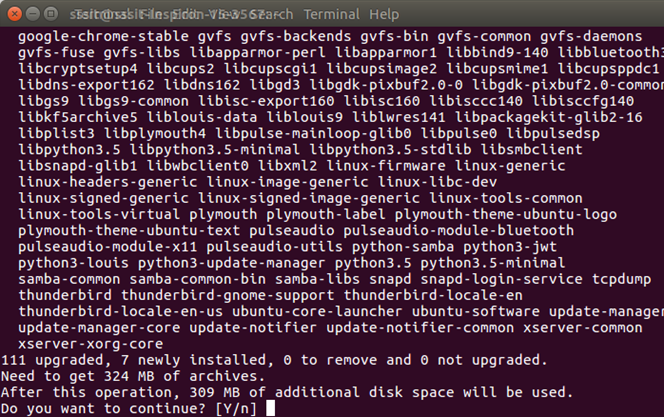
要继续按 Y 键
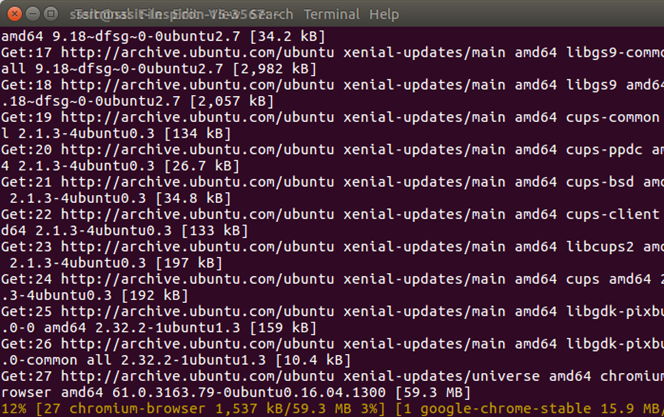
安装 Redis 服务器
使用以下命令安装 Redis 服务器:
sudo apt-get install redis-server
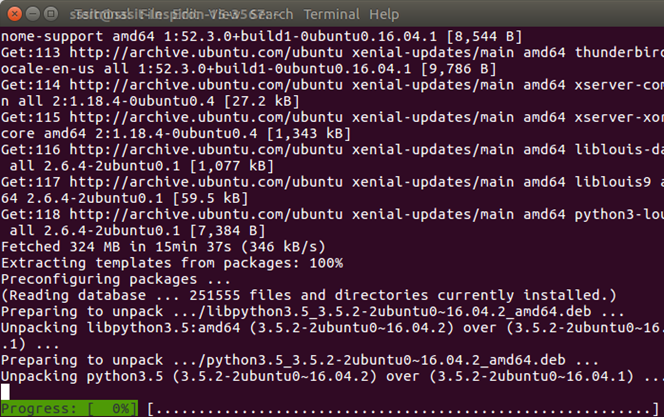
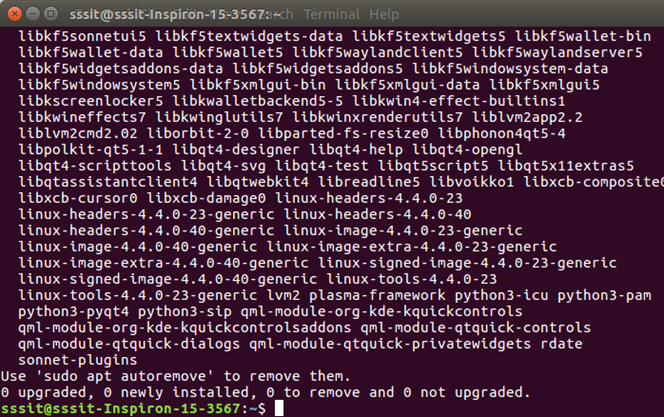
现在安装了 Redis Server。您可以启动 Redis 服务器:
启动 Redis 服务器
您使用以下命令启动 redis 服务器:
redis-server |
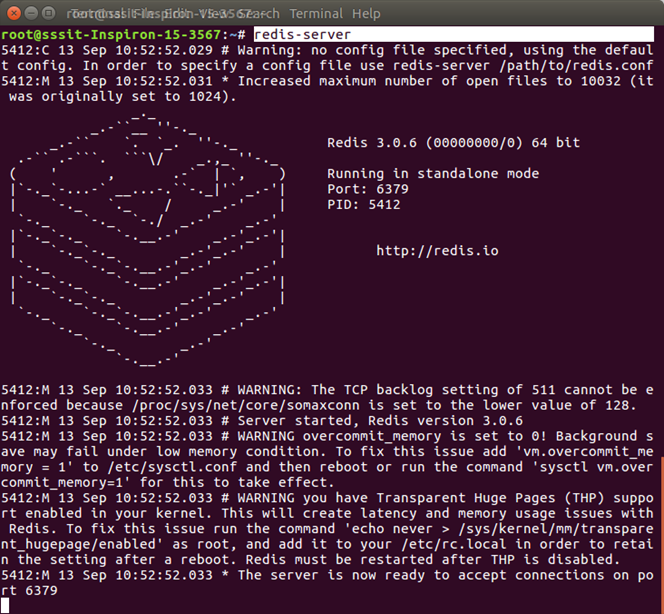
启动 Redis 客户端
Redis 服务器已启动,因此您可以启动 redis 客户端以在它们之间进行通信。
redis-cli |
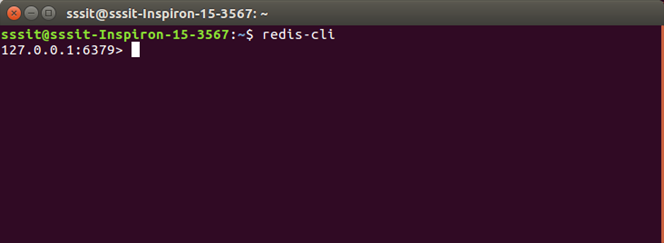
验证 Redis 是否正常工作
执行以下命令:
redis-cli |
这将打开一个 redis 提示符。
redis 127.0.0.1:6379>
在上面的提示中,127.0.0.1 是机器的 IP 地址,6379 是 Redis 服务器运行的端口。
现在键入以下 PING 命令。返回 PONG 表示 Redis 已成功安装在您的系统上。
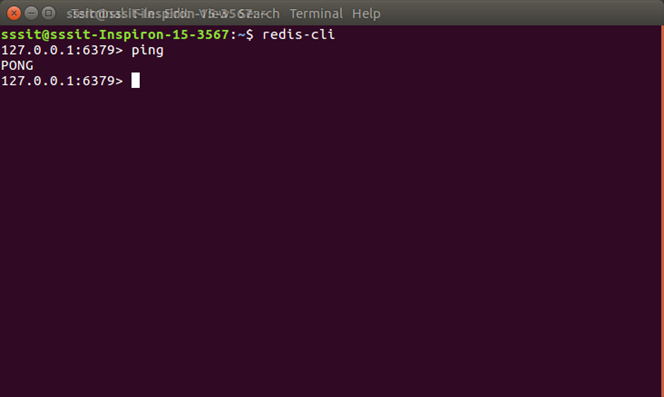
在 windows 上安装 Redis
Redis 官方不建议在 windows 下使用 Redis,所以官网没有 windows 版本可以下载。还好微软团队维护了开源的 windows 版本,虽然只有 3.2 版本,对于普通测试使用足够了。
安装包方式安装 Redis 服务
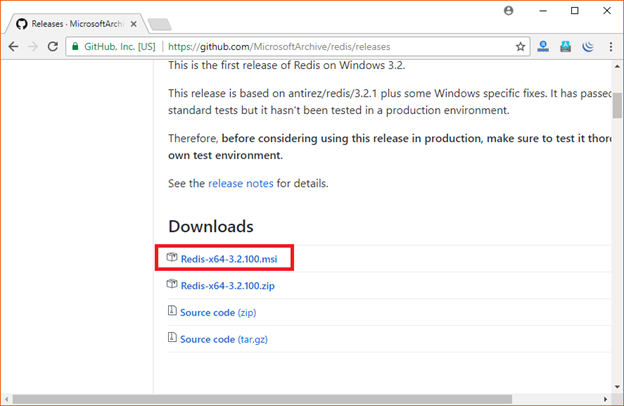
下载地址:https://github.com/MicrosoftArchive/redis/releases
点击下载:
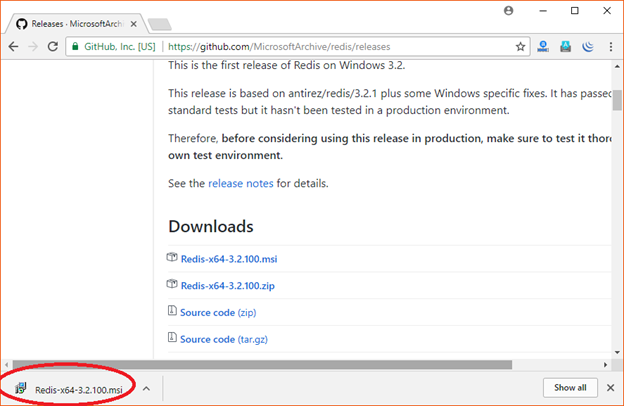
您可以看到 Redis 现在已下载。
或者您也可以使用下面链接下载。
https://github.com/rgl/redis/downloads
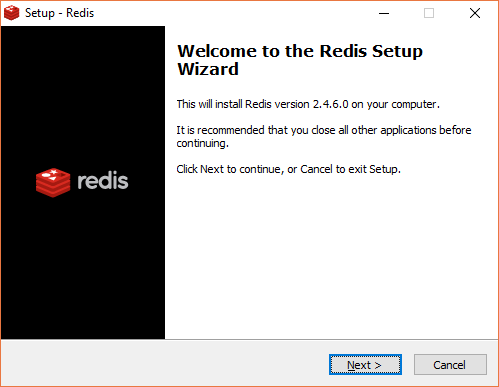
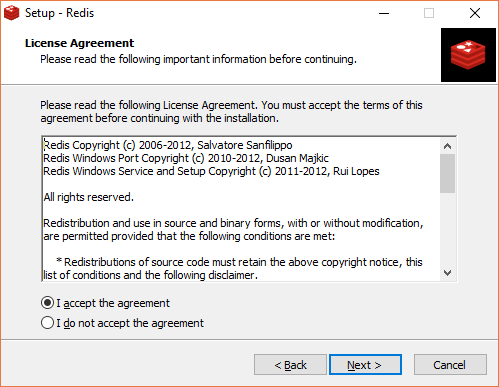
下载完成之后双击按着引导流程安装。
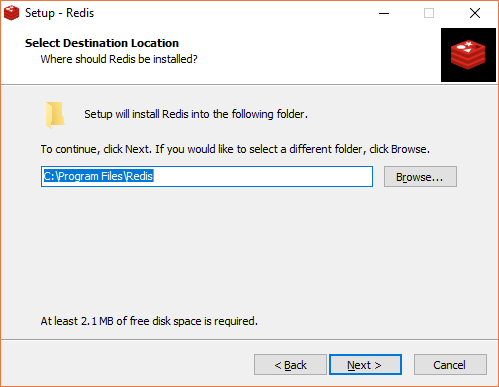
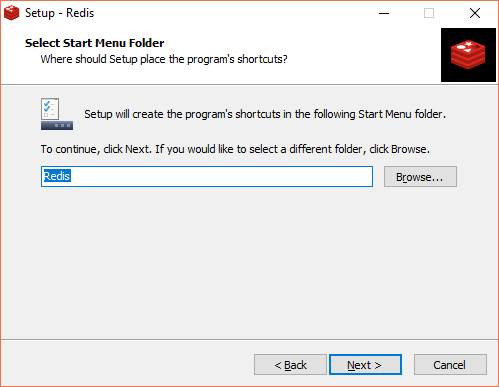
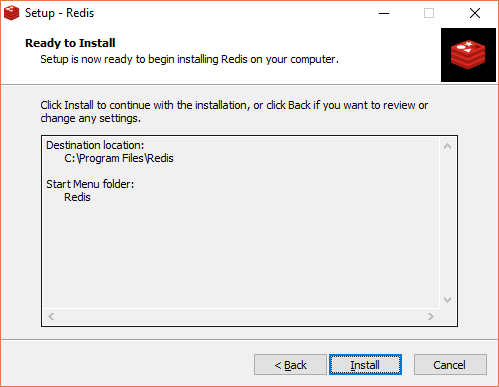
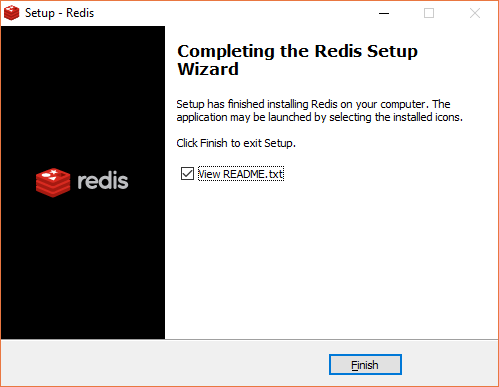
启动 Redis
Redis 现在可以使用了。打开 Redis 程序目录:
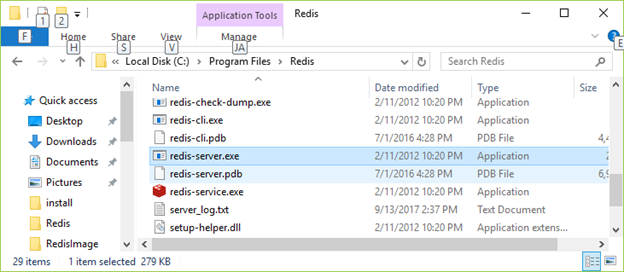
文件介绍:
redis-server.exe:服务端程序,提供 redis 服务
redis-cli.exe: 客户端程序,通过它连接 redis 服务并进行操作
redis-check-dump.exe:RDB 文件修复工具
redis-check-aof.exe:AOF 文件修复工具
redis-benchmark.exe:性能测试工具,用以模拟同时由 N 个客户端发送 M 个 SETs/GETs 查询 (类似于 Apache 的 ab 工具)
redis.windows.conf: 配置文件,将 redis 作为普通软件使用的配置,命令行关闭则 redis 关闭
redis.windows-service.conf:配置文件,将 redis 作为系统服务的配置
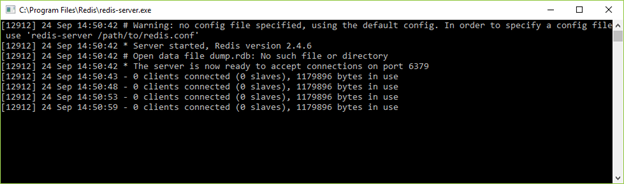
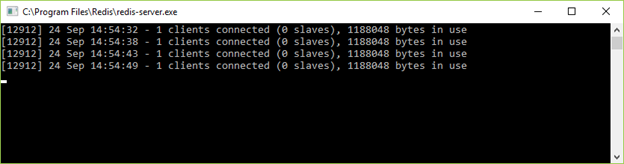
单击 redis-server.exe,启动 Redis 服务。
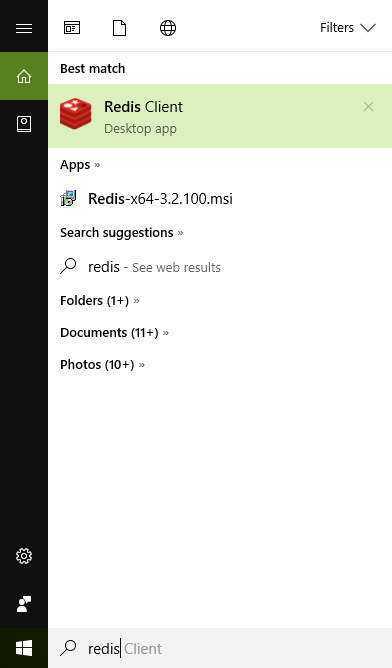
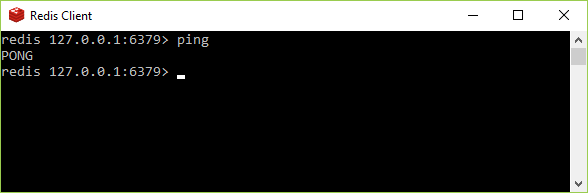
现在启动 Redis 客户端。
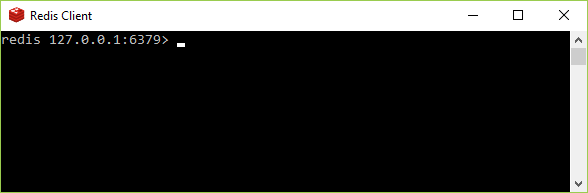
检查 Redis 是否已连接。
使用 PING 命令。
Redis 服务窗口也输出 1 个客户端已连接。
直接解压的方式安装 redis
首先下载 redis 安装包:https://github.com/MSOpenTech/redis/releases
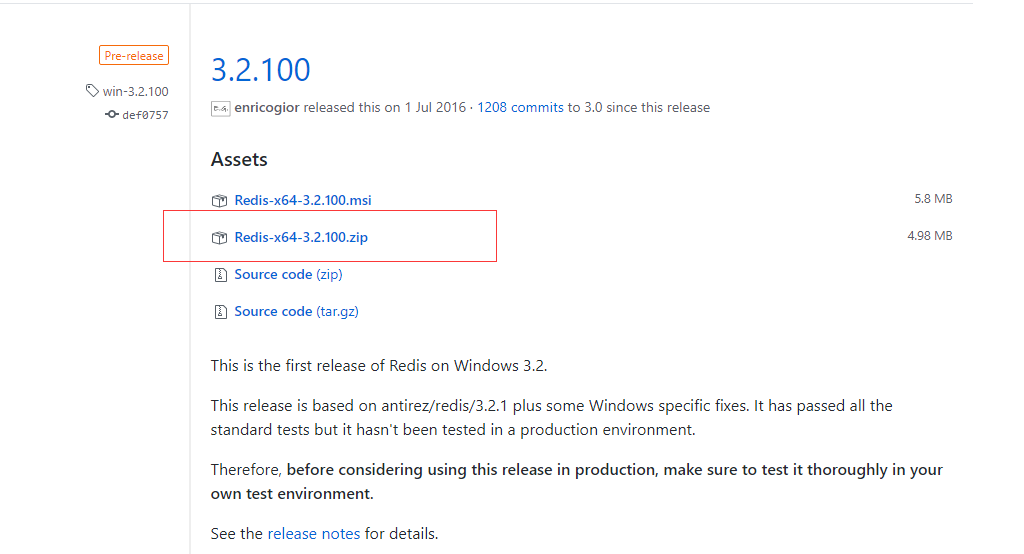
解压安装包到相应文件夹,任何盘符都行,例如 E:\tools\redis-3.2.100。
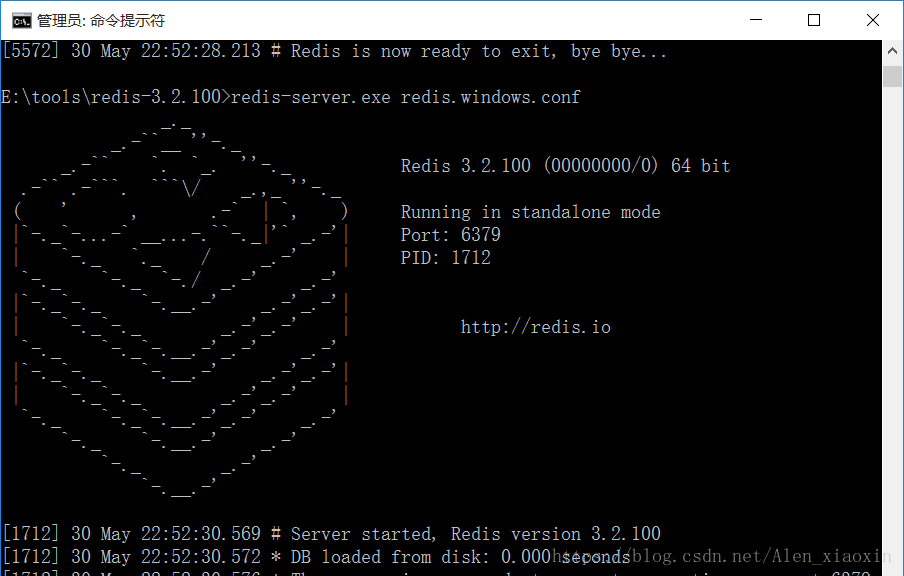
使用命令行启动 Redis 服务
运行 cmd,cd 进入对应目录 E:\tools\redis-3.2.100,执行:
redis-server.exe redis.windows.conf |
*注:可以把 redis 的路径加到系统的环境变量里,这样就省得再输路径了,后面的那个 redis.windows.conf 可以省略,如果省略,会启用默认的参数。
输入之后会显示如下:
安装 redis 到 windows 服务
redis-server --service-install redis.windows.conf |
查看 windows 服务是否加入:
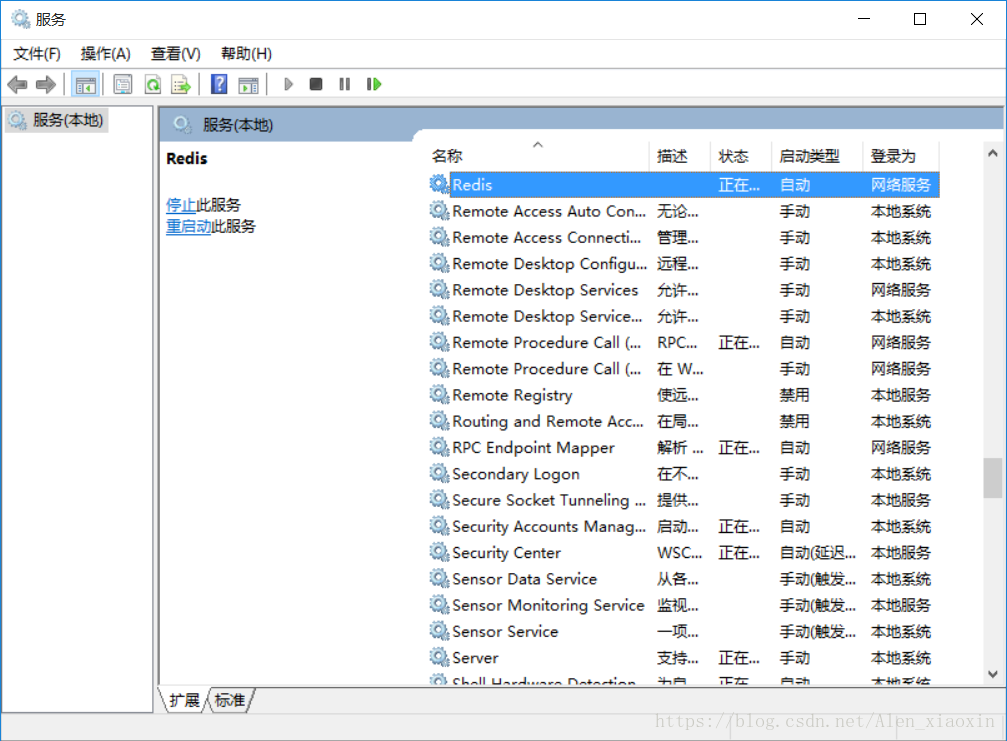
这时候先关闭打开的第一个 cmd 窗口,然后执行以下命令启动再次 redis:
redis-server --service-start |
停止 redis 服务:
redis-server --service-stop |
最后,测试一下 redis 是否能够正常使用:
切换到 redis 目录下:E:\tools\redis-3.2.100 下:
redis-cli.exe -h 127.0.0.1 -p 6379 |